

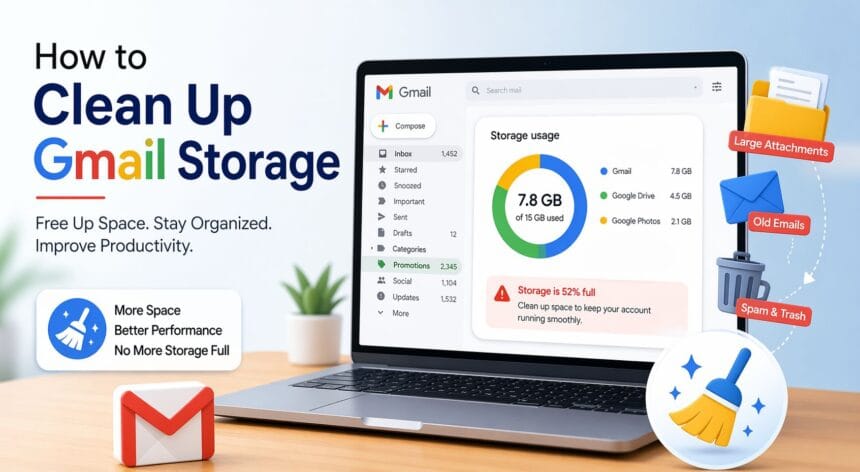

It isn’t difficult to keep your inbox organized when you have a few emails, but as the mailbox fills up with emails, files, and even advertising, your Gmail storage space can easily reach its limit. When that occurs, you might no longer get great emails and even sending messages might be a problem. It is imperative to understand how to clean up Gmail storage so that your account is organized and works efficiently. Several practitioners and advertisers as well as email extractor users are using clean inboxes to stay productive and enhance email response.
- Why Gmail Storage Gets Full
- Step 1: Check Your Gmail Storage Usage
- Step 2: Delete Emails with Large Attachments
- Step 3: Remove Old Promotional Emails
- Step 4: Empty the Spam Folder
- Step 5: Clear the Trash Folder
- Step 6: Delete Emails by Category
- Step 7: Remove Emails Older Than a Specific Date
- Step 8: Clean Up Google Drive Files
- Step 9: Remove Large Files from Google Photos
- Step 10: Use Filters to Automatically Manage Emails
- Quick Comparison Table: Methods to Free Gmail Storage
- Tips to Prevent Gmail Storage from Filling Again
- How Clean Storage Improves Productivity
- When to Consider Buying More Storage
- Common Mistakes to Avoid While Cleaning Gmail
- Benefits of Regular Gmail Cleanup
- Final Thoughts
This manual explains it all in easy language. You would get to know what is stored in your Gmail account, how to delete unwarranted information, and how to keep your account long-term. These steps are simple to follow even when one is not tech savvy.
Why Gmail Storage Gets Full
Gmail offers 15 GB of free storage that is shared with Gmail, Google Drive, and Google Photos. This implies that your email attachments, uploaded files, and stored images all count towards the same storage limit. With time, these files can build up without your notice.
Common reasons for storage filling up include:
- Large attachments in emails
- Promotional and spam emails
- Old conversations with files
- Google Drive documents
- Photos and videos stored in Google Photos
When storage becomes full, Gmail stops working normally. You may see warnings such as “You are out of storage,” and incoming messages will bounce back to senders.
Step 1: Check Your Gmail Storage Usage
Before cleaning up, you should understand what is using your space. Google offers a storage overview page that shows how much data is used by Gmail, Drive, and Photos.
To check:
- Open your Google account storage page.
- Review the storage bar.
- Identify which service is consuming the most space.
If Gmail is the main contributor, you can focus on deleting emails. If Drive or Photos is large, you may need to clean those as well.
Step 2: Delete Emails with Large Attachments
Attachments are one of the biggest storage consumers. Files like PDFs, videos, and images can take up significant space. Gmail allows you to search for emails based on size.
Use this search in Gmail:
has:attachment larger:10M
This will show emails larger than 10 MB. You can then delete the ones you no longer need. After deleting, remember to empty the Trash folder, or the storage will not be freed immediately.
This method alone can recover a large portion of storage quickly.
Step 3: Remove Old Promotional Emails
Promotional emails from online stores, newsletters, and subscriptions can build up quickly. Many of these emails are never opened again.
To remove them:
- Open the Promotions tab
- Select multiple emails
- Click delete
You can also search for specific senders and remove them in bulk. This helps you clear hundreds of emails in just a few minutes.
Step 4: Empty the Spam Folder
Spam emails also consume storage. Gmail automatically deletes spam after 30 days, but if your storage is full, you should empty it manually.
Go to the Spam folder and click “Delete all spam messages now.” This is a quick way to recover extra space.
Step 5: Clear the Trash Folder
Deleting emails is not enough. Gmail keeps deleted emails in the Trash folder for 30 days. During this time, they still occupy storage.
To permanently delete:
- Open Trash
- Click “Empty Trash now”
- Confirm deletion
This step is essential to actually free up storage.
Step 6: Delete Emails by Category
Sometimes, your inbox contains thousands of emails from similar categories. You can remove them in batches to speed up the cleaning process.
Examples:
- Social notifications
- Forum updates
- Shopping confirmations
- Automated alerts
Search by category, select all, and delete. This method helps remove clutter efficiently without affecting important emails.
Step 7: Remove Emails Older Than a Specific Date
Old emails that you no longer need can be safely deleted. Gmail allows date-based searches.
Example search:
older_than:2y
This will show emails older than two years. Review and delete them to reclaim storage.
Step 8: Clean Up Google Drive Files
Even if you clean Gmail, your storage may still be full because Google Drive shares the same space. Large files like presentations, videos, and documents can consume storage.
Steps:
- Open Google Drive
- Sort files by size
- Delete large files you do not need
- Empty the Drive Trash
This will free additional storage quickly.
Step 9: Remove Large Files from Google Photos
Google Photos often stores high-resolution images and videos. These files can take up several gigabytes.
To clean up:
- Delete unwanted photos
- Remove duplicate images
- Clear videos you no longer need
- Empty Photos Trash
This step is especially useful if you frequently upload images from your phone.
Step 10: Use Filters to Automatically Manage Emails
Filters help prevent storage from filling up again. You can automatically delete or archive unwanted emails.
For example:
- Delete promotional emails automatically
- Archive newsletters
- Mark notifications as read
This keeps your inbox clean without manual effort.
Quick Comparison Table: Methods to Free Gmail Storage
Method | Difficulty Level | Storage Recovery | Time Required |
Delete large attachments | Easy | High | 10–15 minutes |
Remove promotional emails | Easy | Medium | 5–10 minutes |
Empty Spam and Trash | Very Easy | Low to Medium | 2 minutes |
Delete old emails | Easy | Medium | 10 minutes |
Clean Google Drive | Moderate | High | 15–20 minutes |
Clean Google Photos | Moderate | High | 20 minutes |
Use filters | Moderate | Long-term benefit | 10 minutes |
This table helps you choose the best method depending on your time and storage needs.
Tips to Prevent Gmail Storage from Filling Again
Keeping your Gmail clean is easier than constantly deleting files. Here are some simple habits to follow:
- Unsubscribe from unnecessary newsletters
- Avoid downloading large attachments repeatedly
- Delete spam regularly
- Archive emails instead of keeping everything in inbox
- Use cloud links instead of attachments
Following these tips helps maintain a clutter-free account.
How Clean Storage Improves Productivity
A clean Gmail account is not just about space. It improves your workflow and helps you find emails quickly. Businesses that rely on email communication also benefit from organized storage.
For example, when managing customer communication or campaigns, a clean inbox helps track responses efficiently. Even professionals working with email xfinity services often prioritize inbox management to ensure smooth communication and data organization. This becomes particularly useful when handling marketing campaigns or Lead Generation efforts, where every important message must be easy to locate.
When to Consider Buying More Storage
If you regularly handle large files, cleaning may not be enough. In that case, upgrading your Google storage plan can be helpful. Google offers affordable plans with additional space.
However, upgrading should be your last option. Cleaning unnecessary data should always come first.
Common Mistakes to Avoid While Cleaning Gmail
Some users accidentally delete important emails while cleaning. To avoid this:
- Review emails before deleting
- Backup critical attachments
- Use labels to mark important conversations
- Avoid deleting entire inbox without checking
These precautions ensure safe cleanup.
Benefits of Regular Gmail Cleanup
Cleaning Gmail regularly offers several advantages:
- Faster email searching
- Better organization
- Improved productivity
- Reduced stress
- No storage warnings
Regular cleanup saves time and keeps your account running smoothly.
Also Read: How to Recover Gmail Password Without Phone Number and Recovery Email
Final Thoughts
Knowing how to clear Gmail storage is a necessity to any email user. It keeps you productive whether you are a student, professional or even a business owner because you always know where to find your inbox. You can quickly free up space by deleting huge attachments, old emails, and cleaning up Google Drive and Photos.
Consistency is the key. Maintenance, just a couple of minutes every week, means that storage will not fill up again. With time, you will have better email performance and communication.
Want to better your email experience? Checking out such features as Benefits of Dark Mode Theme also can boost readability and alleviate eye strain as you process your inbox.